

Notifications List and Actions
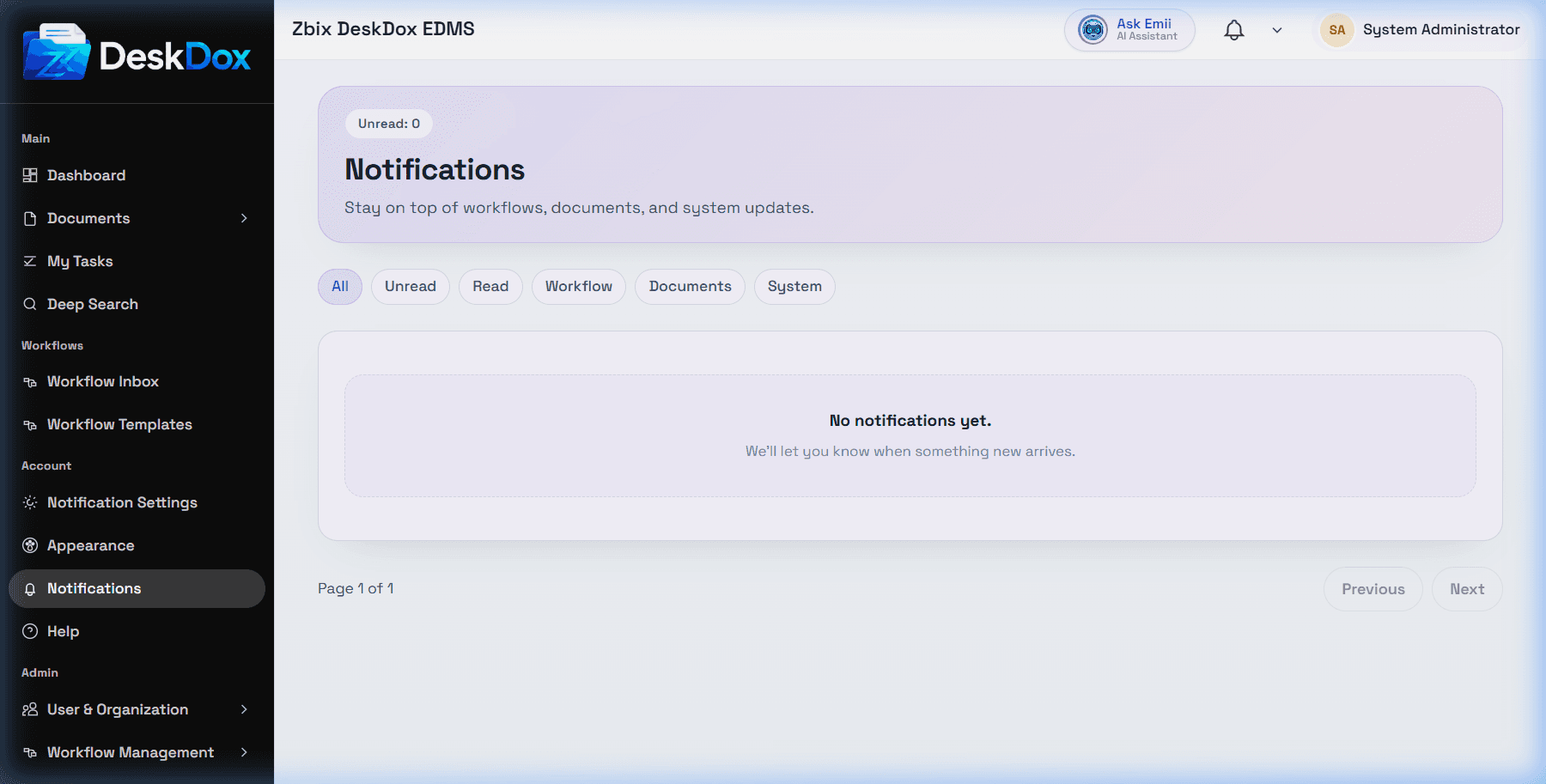
Open /app/notifications to view the notification center. The notification bell can also send you to this page with the Unread or All filter selected.
Filters and paging
DeskDox includes these notification center tabs: All, Unread, Read, Workflow, Documents, and System. The page shows 10 notifications per page and includes Previous and Next paging controls when more pages exist.
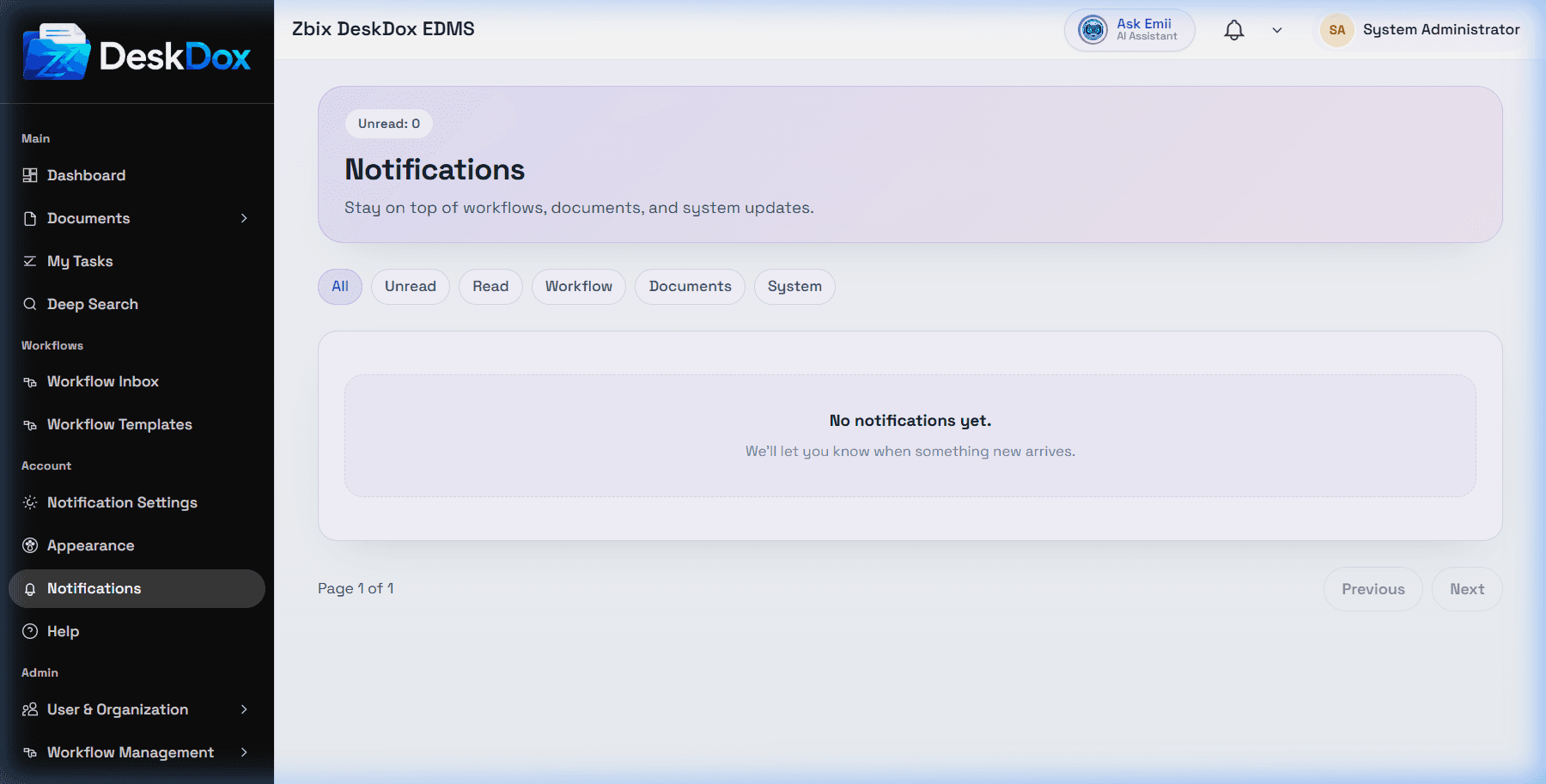
The notifications-list.png capture is identical to the empty-state image, so it is indexed as another notification center empty-state reference, not as proof of a populated notification history.
Read behavior
When you open an unread notification from the list, DeskDox marks that notification as read. If the notification points to a document, DeskDox opens the document route. If it points to a workflow, DeskDox opens the workflow route. Some notifications may not have a separate detail page.
Mark all as read appears when unread notifications exist. It can show success text such as Marked 3 notifications as read or Nothing to mark as read depending on the result.
Empty list troubleshooting
No notifications yet. means no matching notifications were returned for the current filter. You're all caught up. appears for an empty unread view. Check the selected filter, notification preferences, linked workflow or document permissions, and whether an event has actually occurred for your account.