

Workflow Template Steps and Routing
What this helps you do
Configure the approval or review stages that determine who receives workflow tasks, and how documents are routed through the approval path.
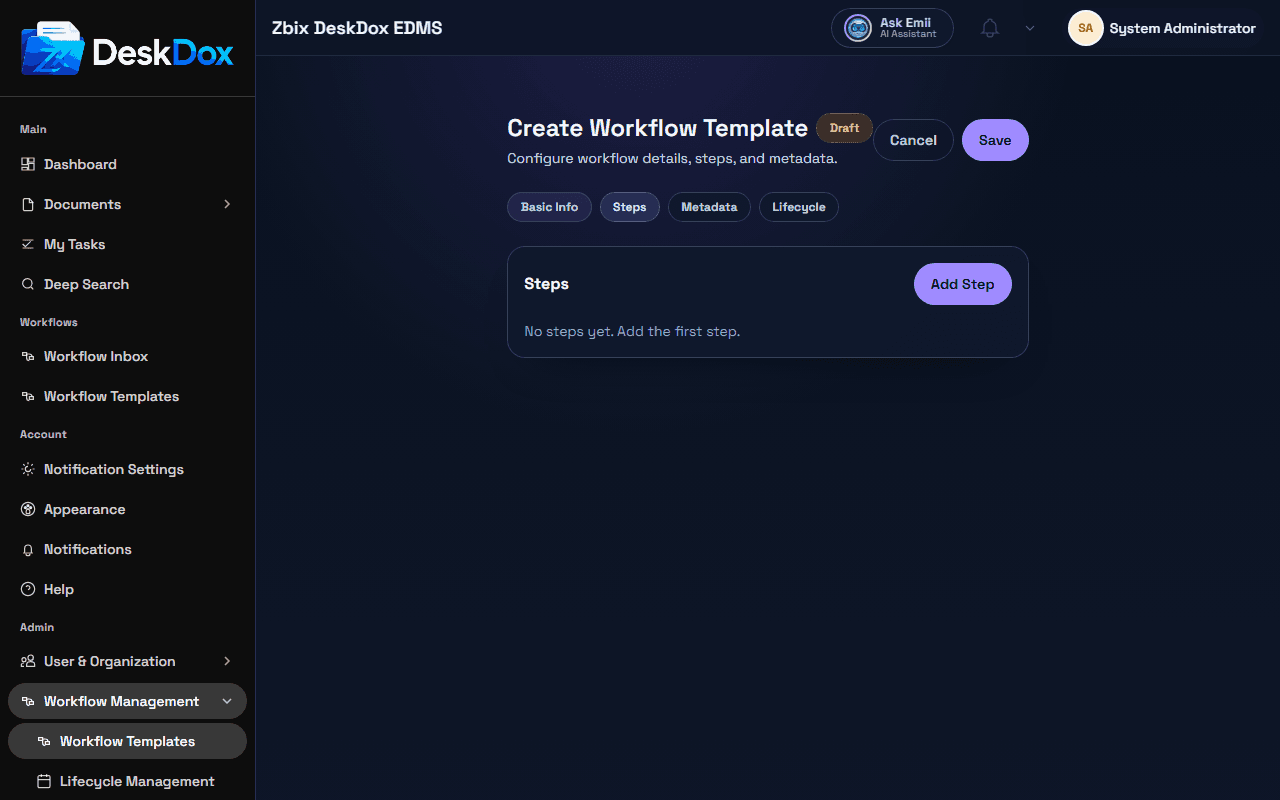
Step order
Use Add Step to add a step. Each step appears as Step {N} with Step Name, assignment fields, behavior toggles, and SLA settings when available. Steps can be reordered with the visible up and down controls and removed with Remove.
Assignee types and routing
Workflow routing is controlled by the assignee type on each step. Supported assignee types are User, Role, Department, Department Head, and Metadata Email.
Assignee Userselects a specific user.Assignee Roleaccepts a role value such asedms_admin.Departmentselects a department for department or department-head routing.Metadata Email Fieldselects from email-type metadata fields defined on the template.
Each step routes the workflow task to its assigned approver or reviewer in sequence. When a step is assigned to a department, eligible department members can see the pooled task and one user should claim it before acting.
Missing or wrong approver
If an approver is missing or a task goes to the wrong user, check the assignee type, selected user, role spelling, department membership, department head setup, metadata email value, required metadata, and whether the template version used by the live workflow matches the template you edited.
If no valid assignee is found, the workflow may fail to start, become stuck, or require admin supervision depending on system behavior and configuration.
Related Emii questions
- "How do I add workflow steps?"
- "How do I assign approvers?"
- "Can I assign a workflow step to a department?"
- "What happens if no approver is found?"
- "How does workflow routing work?"