

Workflow Templates List
What this helps you do
Find workflow templates, understand list filters and status badges, and open the editor when your permissions allow it.
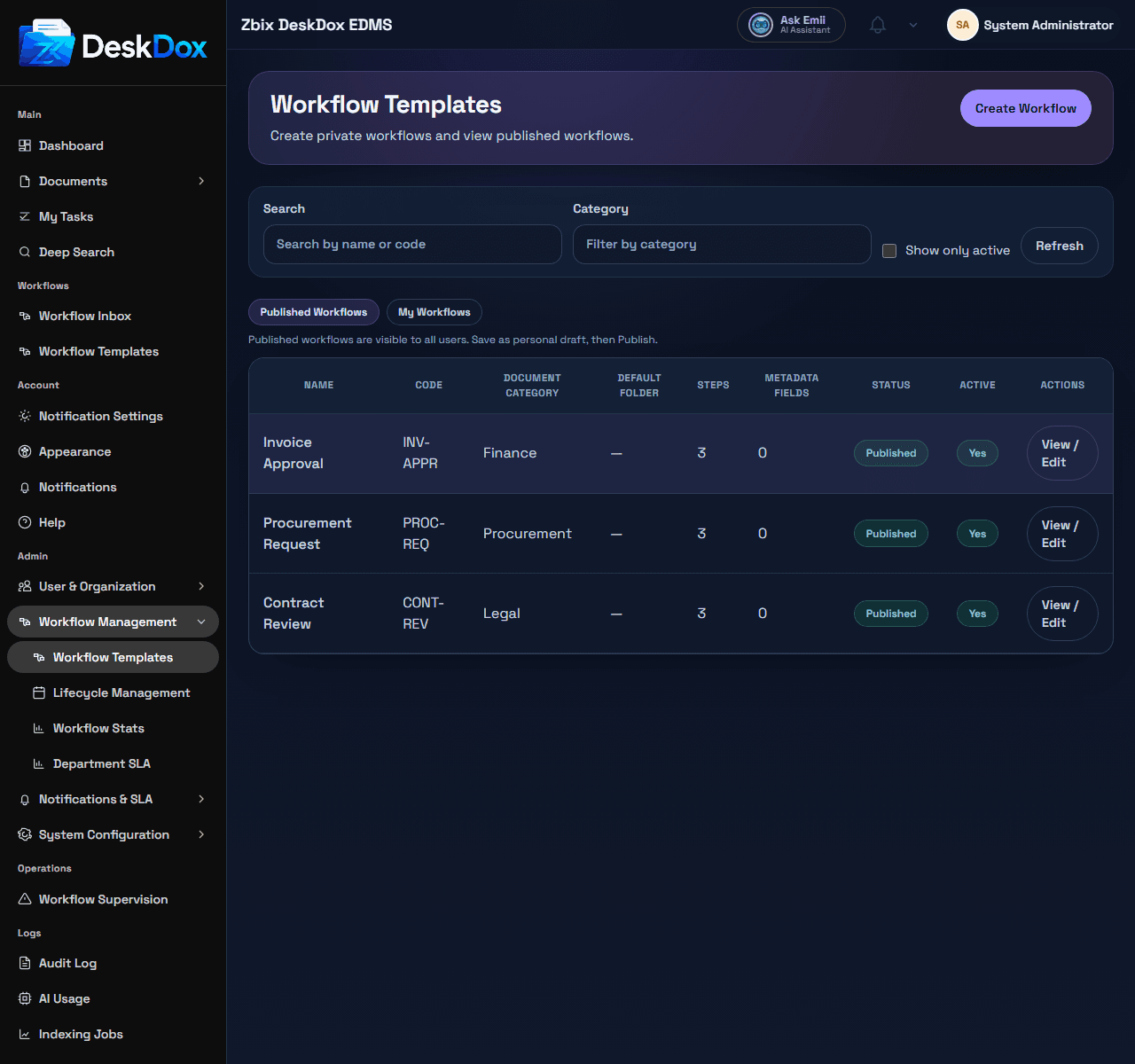
List and tabs
Open Workflow Templates at /app/admin/workflow-templates. Tabs include Published Workflows and, when the user can publish workflow templates, My Workflows.
The table can include Name, Code, Document Category, Default Folder, Steps, Metadata Fields, Status, Active, and Actions.
Search, filters, and status
Use Search to filter by name or code. Use Category for document category filtering. Use Show only active to limit results to active templates, and Refresh to reload the list.
Status badges can show Published or Draft. Active badges can show Yes or No. An active template is enabled by its Active flag. A published and active template is the kind most likely to be available for starting workflows or upload selection, depending on configuration.
Create or edit templates
Use Create Workflow when visible to open the new template editor. The button is visible only when canCreateWorkflowTemplate is available.
Use View / Edit on a row to open the template editor. Editing may still be restricted by ownership, draft visibility, and workflow template permissions.
Templates can be reused by starting new workflows from the same published and active configuration. This helps keep repeated approval processes consistent.
Empty or hidden templates
Supported empty states include No published workflows. Create workflow, save, then publish., No published workflows available., and No personal workflows found.
If a template is not visible, check the selected tab, search text, category filter, Show only active, draft versus published status, active flag, ownership, and whether your account has workflow admin permissions.
Related Emii questions
- "Where can I see workflow templates?"
- "How do I create a workflow template?"
- "Why can't I see a workflow template?"
- "What does active workflow template mean?"