

Workflow Template Activation and Status
What this helps you do
Understand the difference between draft/published status and active/inactive availability.
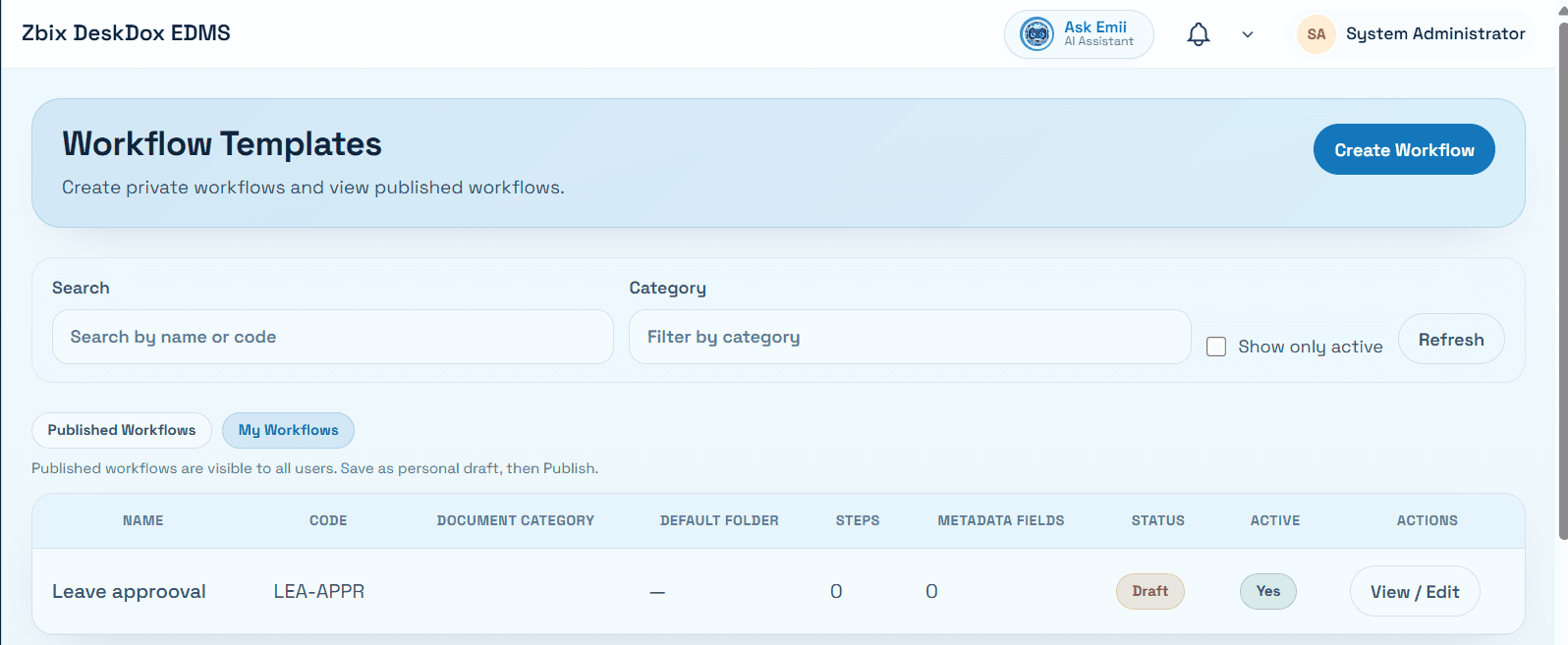
Draft, published, active, and inactive
The editor shows a status pill for Published or Draft. The list page also shows status and an active badge of Yes or No.
Publish changes a draft toward published status when the button is visible. The Publish action is visible only when canPublishWorkflowTemplate is available and the template is not already published.
Active controls whether the template is enabled. A template can be published but inactive. Inactive or draft templates may be visible to admins but should not be assumed to appear during upload or new workflow selection.
Upload availability
Upload workflow selection uses active published templates. If a template is not available during upload, check published status, active flag, user permissions, category or upload filters, and whether you are looking at the correct tenant or environment.
Safe activation practices
Before activating or publishing, check the name, code, default folder, required metadata, step order, assignees, SLA settings, and test-template status. Template changes may affect only new workflows depending on workflow versioning and how existing workflow instances were started.
Avoid editing an active template casually. If the change affects routing or compliance, document the change and confirm whether existing in-progress workflows should continue under their original configuration.
Related Emii questions
- "How do I activate a workflow template?"
- "Why is a workflow template not available during upload?"
- "Should I edit an active workflow template?"