

Workflow SLA and Due Dates
Workflow SLA is configured at the workflow template step level on /app/admin/workflow-templates/:id. This is an admin configuration area and may be hidden if your role cannot manage workflow templates or SLA policy.
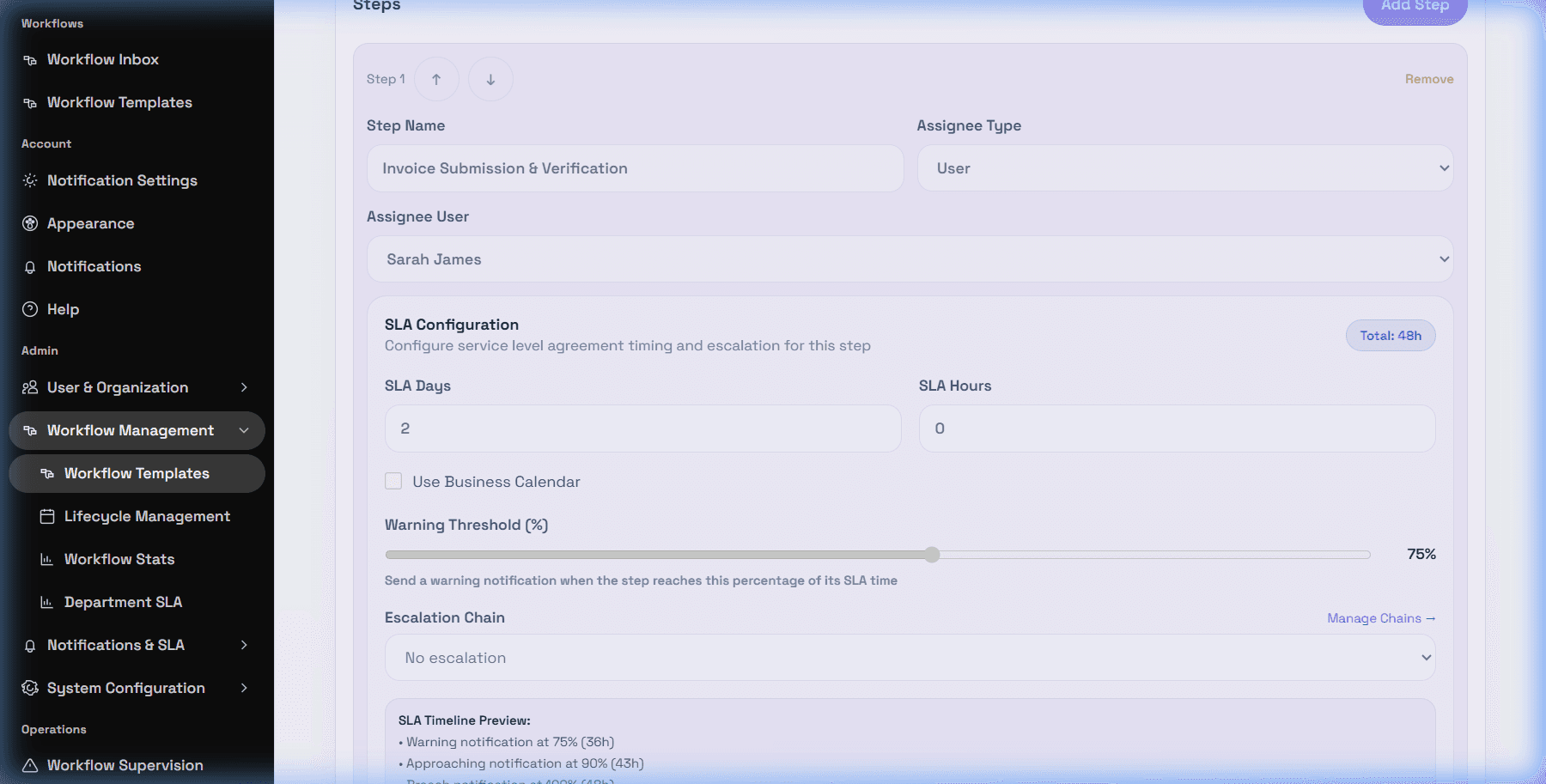
Step-level SLA settings
The SLA Configuration panel includes SLA Days, SLA Hours, Use Business Calendar, Calendar, Warning Threshold (%), and Escalation Chain. DeskDox calculates a total duration from days and hours. If a business calendar is selected, the UI labels the total as business hours and explains that weekends and holidays are excluded from SLA calculations.
The warning threshold slider is available from 50% to 95% in 5% steps, defaulting to 75% when unset. The step editor's SLA Configuration preview section is available to label warning notification, approaching notification, breach notification, and escalation timing. Exact delivery still depends on the configured notification, email, mobile, and escalation services.
Due dates and calendars
Task due dates are based on the step SLA, the task timing, and whether a business calendar is selected. If Use Business Calendar is enabled, DeskDox should calculate against the selected calendar's working days, working hours, and holidays. If it is off, due dates use elapsed time rather than the business calendar.
Safe rollout practices
Review SLA values before publishing or activating workflow templates. Existing workflows may continue using the template version they started with, so verify live workflow behavior after a template change. For production changes, confirm the business calendar, warning threshold, escalation chain, and notification preferences before relying on automated reminders.