

Workflow Template Basic Info
What this helps you do
Configure the core details that identify a workflow template and influence how it appears to users.
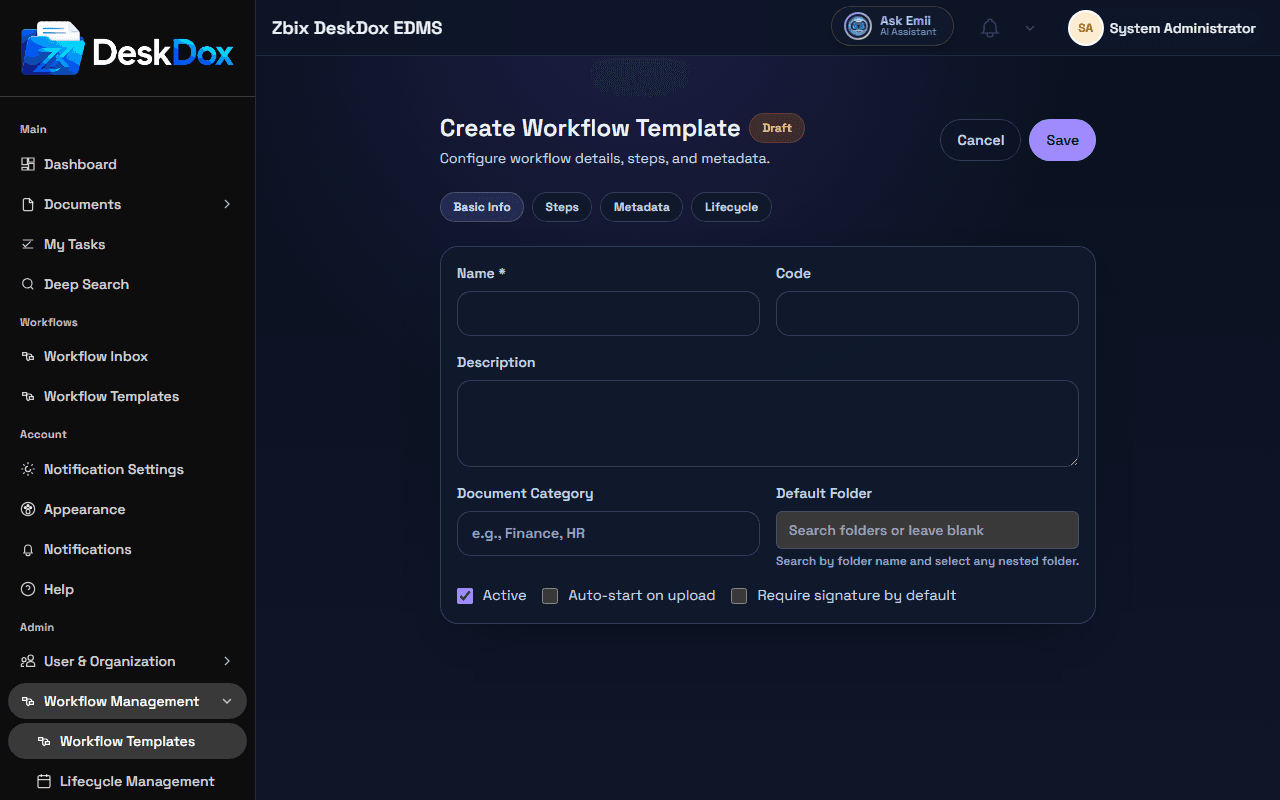
Basic fields
The Basic Info tab includes Name *, Code, Description, Document Category, Default Folder, Active, Auto-start on upload, and Require signature by default.
Name * is the user-facing template name. Code is a unique identifier and may be generated from the name, but it is validated on save. Description helps admins understand the purpose of the template. Document Category can be used to group or filter templates.
Ownership, department, or availability details may also appear depending on configuration. Use those values to keep template responsibility and access clear for administrators.
Default folder and upload availability
Default Folder sets a preferred destination folder for documents that use the template when that behavior is supported by the upload or workflow flow.
A workflow template may not be available during upload if it is draft, inactive, filtered out by category or configuration, hidden by permissions, or not published. Upload selection is based on active published templates.
Active status
Active controls the template's active flag. Inactive templates may remain visible to admins but should not be assumed to be selectable by normal users during upload.
Use inactive status for drafts, tests, or retired workflows when you do not want new workflows to start from that template.
Related Emii questions
- "What does default folder mean in a workflow template?"
- "Why is a workflow template not available during upload?"
- "What happens if a template is inactive?"