

Create or Edit a Workflow Template
What this helps you do
Open the workflow template editor, complete required fields, save changes, and understand why editing may be blocked.
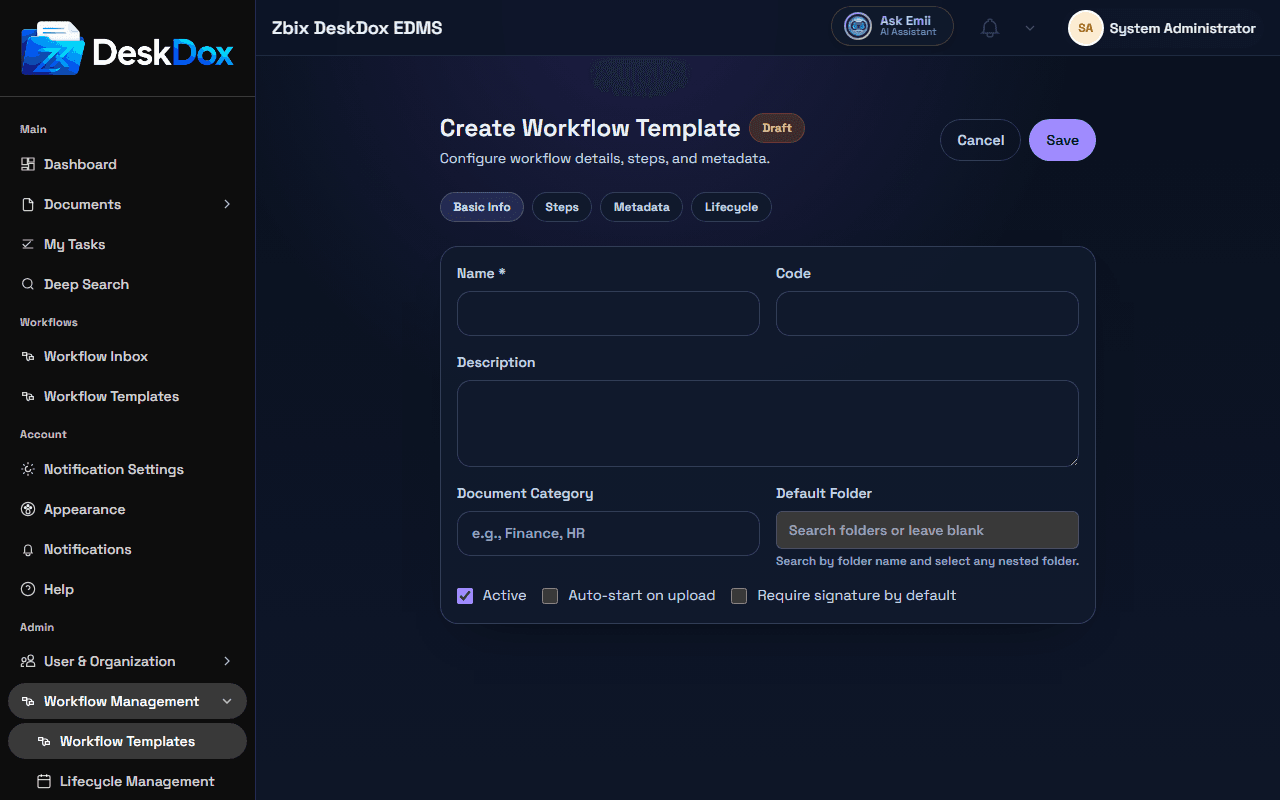
Open the editor
From Workflow Templates, use Create Workflow when visible to create a new template. Use View / Edit from an existing row to open the edit route at /app/admin/workflow-templates/:id.
The editor title changes between Create Workflow Template and Edit Workflow Template. The layout is divided into sections or tabs such as Basic Info, Steps, and Metadata. Additional policy sections may appear when your role and license allow them.
Required fields
Name * and Code are required. The code can be auto-generated from the name on blur, but it is still validated on save. Description, Document Category, Default Folder, Active, Auto-start on upload, and Require signature by default are optional configuration fields.
Steps, metadata fields, SLA policy, and lifecycle settings are configured in their own tabs or panels when available.
Save, cancel, and validation
Use Save to create or update the template. Use Cancel to return to the list. Activation or publishing controls affect whether the template can be used for new workflows. Validation errors usually mean required fields are missing, the code is invalid or not unique, a step has incomplete assignment data, required metadata configuration is incomplete, or a restricted policy panel cannot be saved by the current user.
The editor can be read-only. Notices include Read-only view. Click Edit to make changes. and Read-only: only owners of private drafts can edit.
Permission requirements
Creating requires canCreateWorkflowTemplate. Publishing requires canPublishWorkflowTemplate. Editing a private draft may depend on ownership. Some panels, including SLA and lifecycle, are separately capability-gated.
Related Emii questions
- "What fields are required in a workflow template?"
- "Why can't I save a workflow template?"
- "Who can edit workflow templates?"