

How to Review an Approval Task
What this helps you do
Approve or reject a workflow task after reviewing the document, metadata, comments, and workflow history.
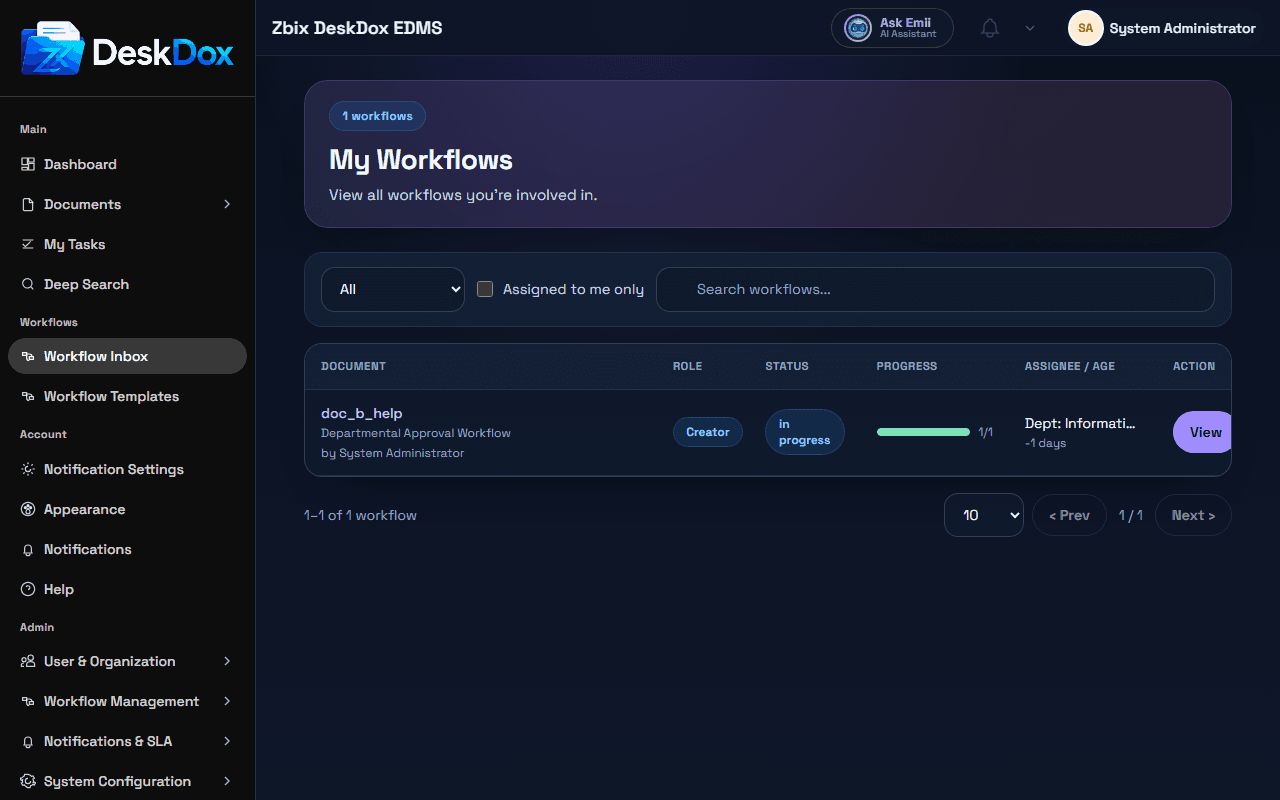
Who can use it
Assigned users, members of the assigned role or department, and workflow administrators can review tasks according to workflow configuration. When a workflow step is assigned to a department, eligible members of that department can see the pooled task. A user must claim the task before taking action, which helps prevent multiple users from acting on the same approval at the same time.
Required permissions
- View access to the linked document.
- Assignment to the current task or administrative workflow permission.
- Comment or decision permission for the workflow step.
Open your task
- Open
My Tasks. - Select the workflow task.
- Review document, workflow context, due date, and activity.
If the task is pooled for a department, claim it first. After claiming, the available decision actions are shown according to the step configuration and your permissions.
Take action
- Add decision comment.
- Choose
ApproveorReject. - If rejecting, include a clear reason (required).
- Optionally upload a revised file where allowed.
View workflow status and history
Before acting, check prior comments, previous assignees, current step, due date, and any activity or audit records. This prevents approving a document that was already rejected, revised, or reassigned.
Claim and reassign notes
- If a task is role- or department-assigned, you may need to claim it first.
- Reassignment is role-controlled and may require reason logging.
Signature-related behavior
Some tasks cannot complete until required signatures are satisfied.
Common mistakes
- Approving without previewing the latest document version.
- Rejecting without a clear reason.
- Trying to act on a task assigned to a different user or role.
- Missing required signature steps before completion.
Troubleshooting
If action buttons are missing, confirm the task is assigned to you, the workflow is still active, and your user belongs to the required role or department. If the task disappeared, it may have been completed, reassigned, cancelled, or superseded by a newer workflow instance.
Related Emii questions
- "How do I approve a workflow task?"
- "Why can't I reject this task?"
- "Where can I see workflow history?"
- "Why is a workflow task assigned to my department?"