

How to Submit or Track a Workflow
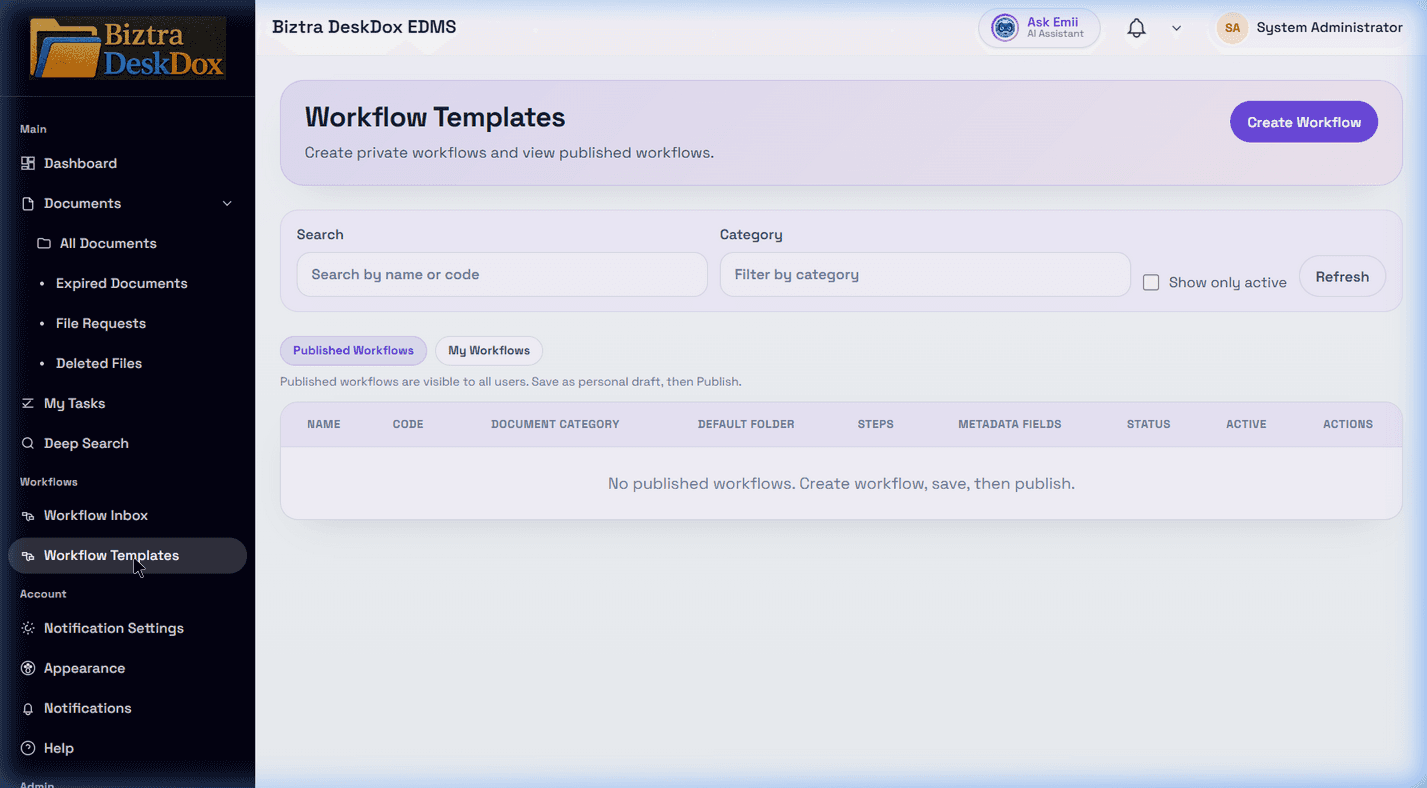
What this helps you do
Start a workflow from upload or document actions, track workflow status, and understand why workflow options may be missing.
Who can use it
Users with workflow access can submit documents into available templates and view workflow status. Approvers and task owners can act on assigned tasks.
Required permissions
- Document upload or document view access.
- Permission to start the selected workflow template.
- Task assignment, role assignment, or department assignment for approval actions.
Start a workflow
- Open the document or upload a new document.
- Choose the workflow template that matches the process.
- Confirm required metadata is complete.
- Submit or start the workflow.
Upload a document with workflow
- Upload the document.
- Select a workflow template (if required).
- Complete required metadata.
- Submit.
View workflow status
- Open
Workflow Inbox. - Filter by status or "assigned to me".
- Open the linked document/workflow item.
- Review current assignee and step progress.
Track workflow history
Open the document details or workflow item and review the activity, workflow, or audit sections. History helps confirm who submitted, approved, rejected, reassigned, or commented on a workflow.
If progress is blocked
- A prior step may still be pending.
- Signature may be required before completion.
- Task may be assigned to another user/role.
Troubleshoot missing workflow options
- No template appears: your role may not have access to the template.
- Template appears during upload but submit fails: required metadata may be missing.
- Task is not in
My Tasks: it may be assigned to another user, role, or department. - Approval buttons are hidden: you may be a viewer, not the assigned approver.
Related Emii questions
- "How do I start a workflow?"
- "Why can't I see workflow templates?"
- "How do I track workflow status?"
- "Why is my approval task missing?"