

Document Lifecycle Tab
What this helps you do
Use the document Lifecycle tab to see lifecycle state, matched policy/version/assignment, and resolver trace when visible.
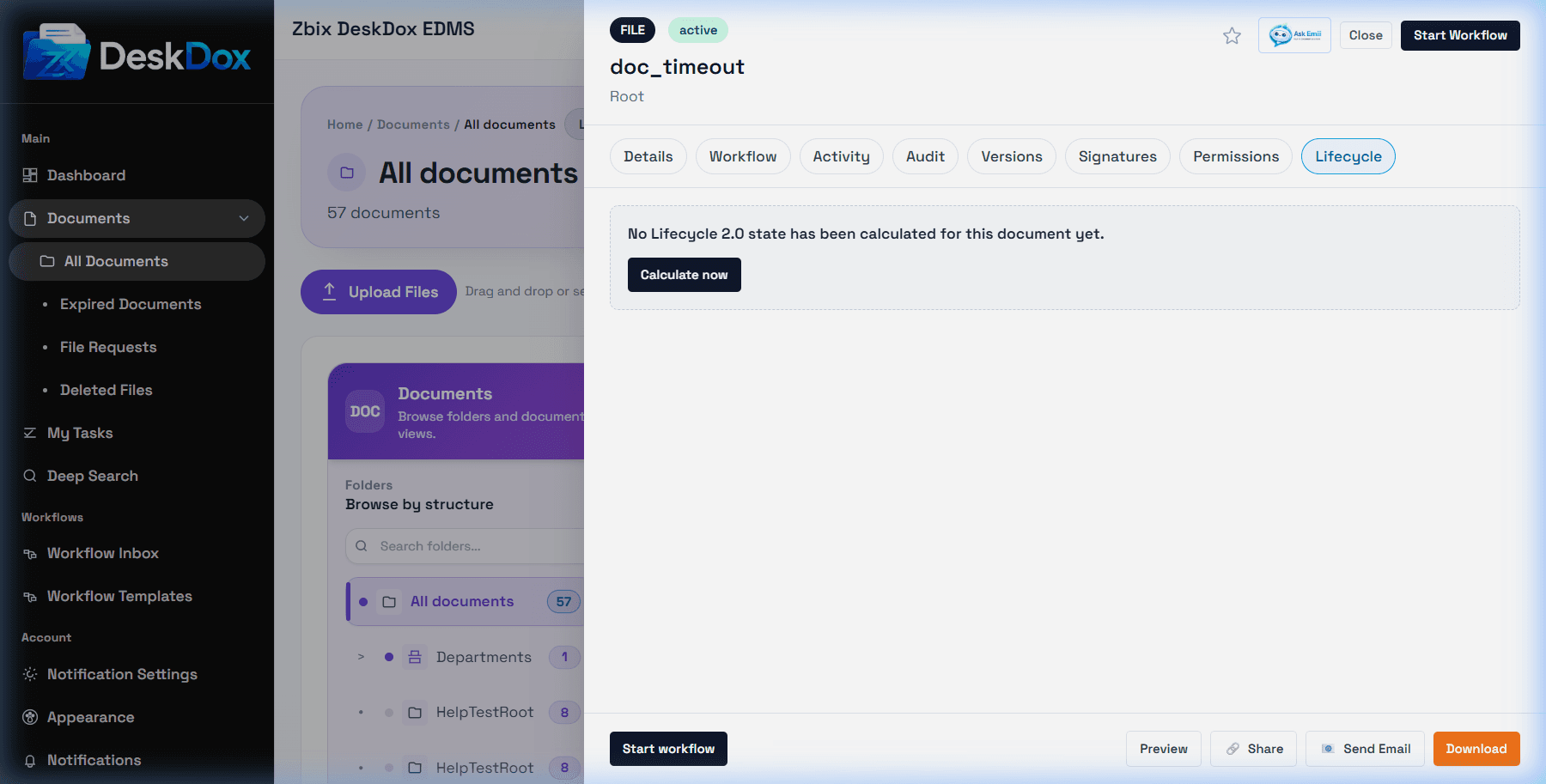
Open a document detail drawer and select Lifecycle when the tab is visible. The user list includes the tab can show lifecycle status, matched policy, matched version, matched assignment, resolver trace, and a Recalculate lifecycle action.
Lifecycle states can include managed, unmanaged, expiring, expired, retention active, archived, or calculation error depending on system state and UI wording. If no policy matched, check assignments, policy version activation, effective dates, document metadata, and permissions.
Resolver trace explains why a policy matched or why candidates were skipped. The resolver trace records the selected scope, skipped candidates, and candidates considered. Use it to diagnose wrong policy, wrong version, or assignment precedence.
Recalculate lifecycle is permission-dependent and normally requires administrator access. If the button is not visible, your role may not allow it or the feature may be hidden in that deployment.