

Upload Documents
What this helps you do
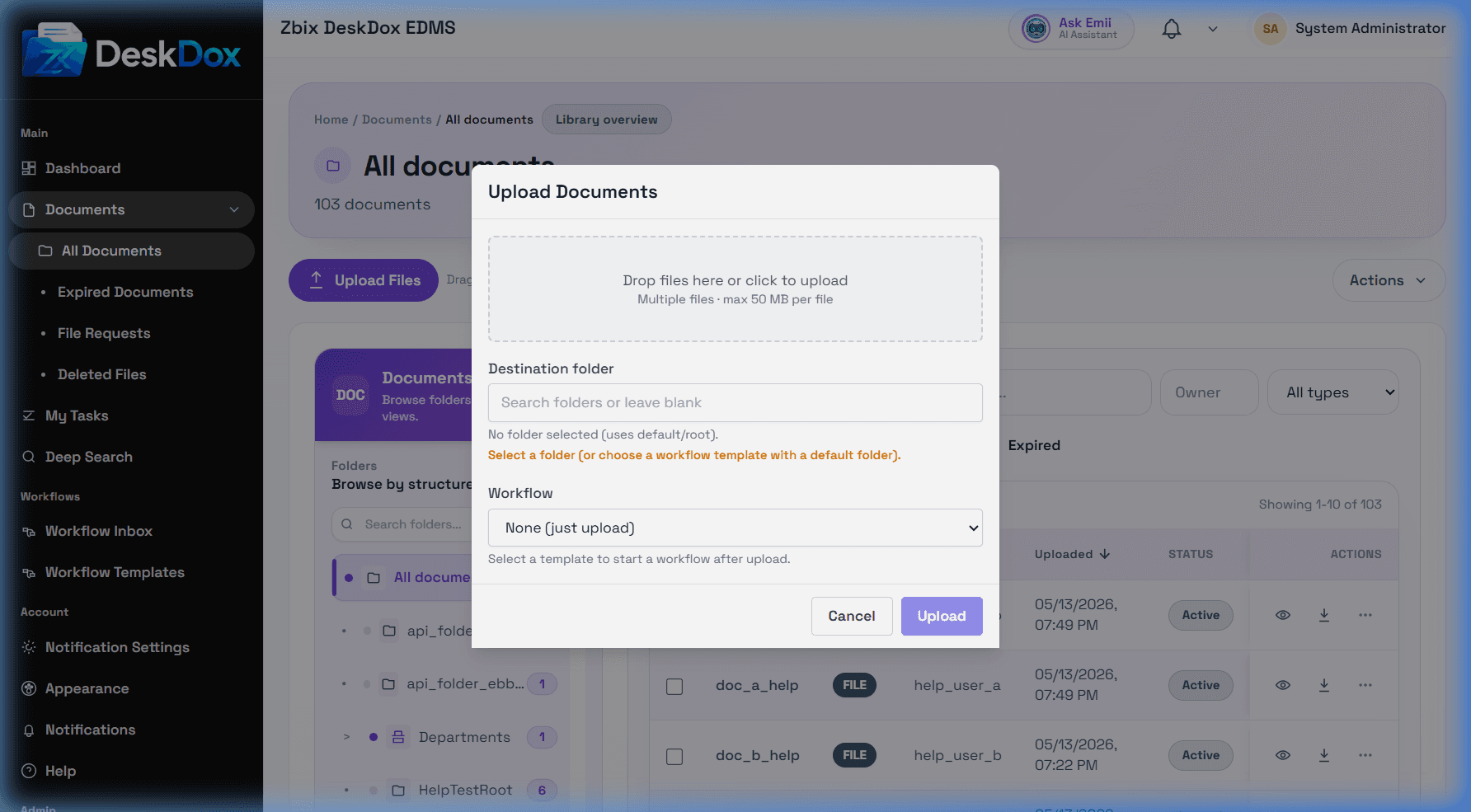
Use the Upload Documents modal to add files to DeskDox, place them in the correct folder, complete required metadata, and start a workflow during upload when your workspace is configured for it.
Before you upload
You need access to the Documents module and upload permission on the destination folder. Folder access is usually driven by department membership, folder permissions, document ownership rules, or administrator rights. If the folder list is empty or the Upload Files button is hidden, ask an administrator to check your role, department assignment, and folder permission.
Upload steps
- Open
Documents. - Select the destination folder from the folder tree, or select it inside the upload modal if the modal asks for a folder.
- Click
Upload Files. - Drag files into the upload area or click
Choose Files. - Confirm the destination folder.
- Select a workflow if a workflow selector is shown.
- Complete all required metadata fields, including expiry metadata when required.
- Submit the upload.
After upload, the document appears in the document table for users who can view that folder or document. If a workflow was selected, DeskDox creates the workflow instance after the file and metadata pass validation.
Required metadata and expiry metadata
Required metadata may include document type, category, reference number, owner, department, effective date, expiry date, or workflow-specific fields. Expiry metadata is required when lifecycle or retention rules need a date to calculate expiry. The error Required expiry metadata field is missing means the upload is blocked until the required expiry field is filled with a valid date/value.
Troubleshooting
If Upload Files is not visible, check that your role allows upload and that you have upload access to at least one folder. If the upload fails, check file type, file size, folder selection, required metadata, workflow selection, and network connectivity. If the document uploads but is not showing, clear filters, refresh the folder, and confirm you are viewing the folder where the file was uploaded.