

Folder Navigation and Actions
What this helps you do
Use the folder tree to move between root folders, department folders, and subfolders, and to create or manage folders when your permissions allow it.
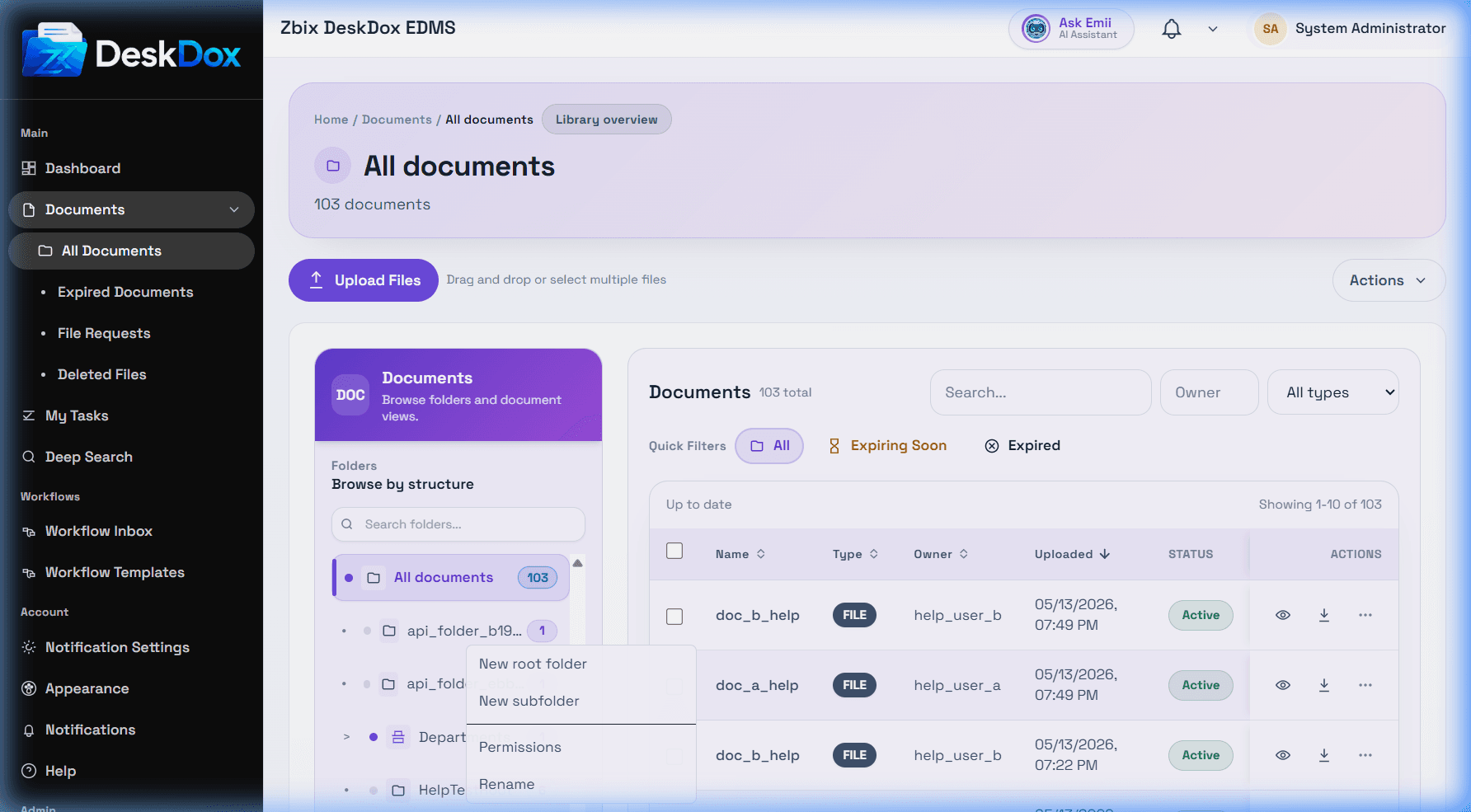
Navigate folders
Root folders appear at the top of the tree. Expand a folder to reveal subfolders, then select a folder to show its documents in the table. A department folder may be visible only to users in that department or users granted folder access.
Folder actions
Use the folder context menu for the available folder actions: New root folder, New subfolder, Permissions, and Rename. Folder ownership and folder permission rules determine which actions appear. If an action is hidden, your role or folder-level access probably does not allow it.
Delete folder visibility
A Delete folder action may be hidden depending on the current license state. If your deployment exposes a Delete folder action, it may depend on license status, permissions, folder protection, and whether the folder is empty. Confirm with your administrator before deleting folders.
Missing folders
If a folder is not showing, clear folder search, refresh the page, and confirm you are in the correct department. Then ask an administrator to check folder ownership, department membership, inherited permissions, and whether the folder was renamed, moved, or deleted.