

Preview and Review a Document
What this helps you do
Use the Preview modal to view a document in the browser before deciding whether to download the original file, start a workflow, share it, or inspect its details.
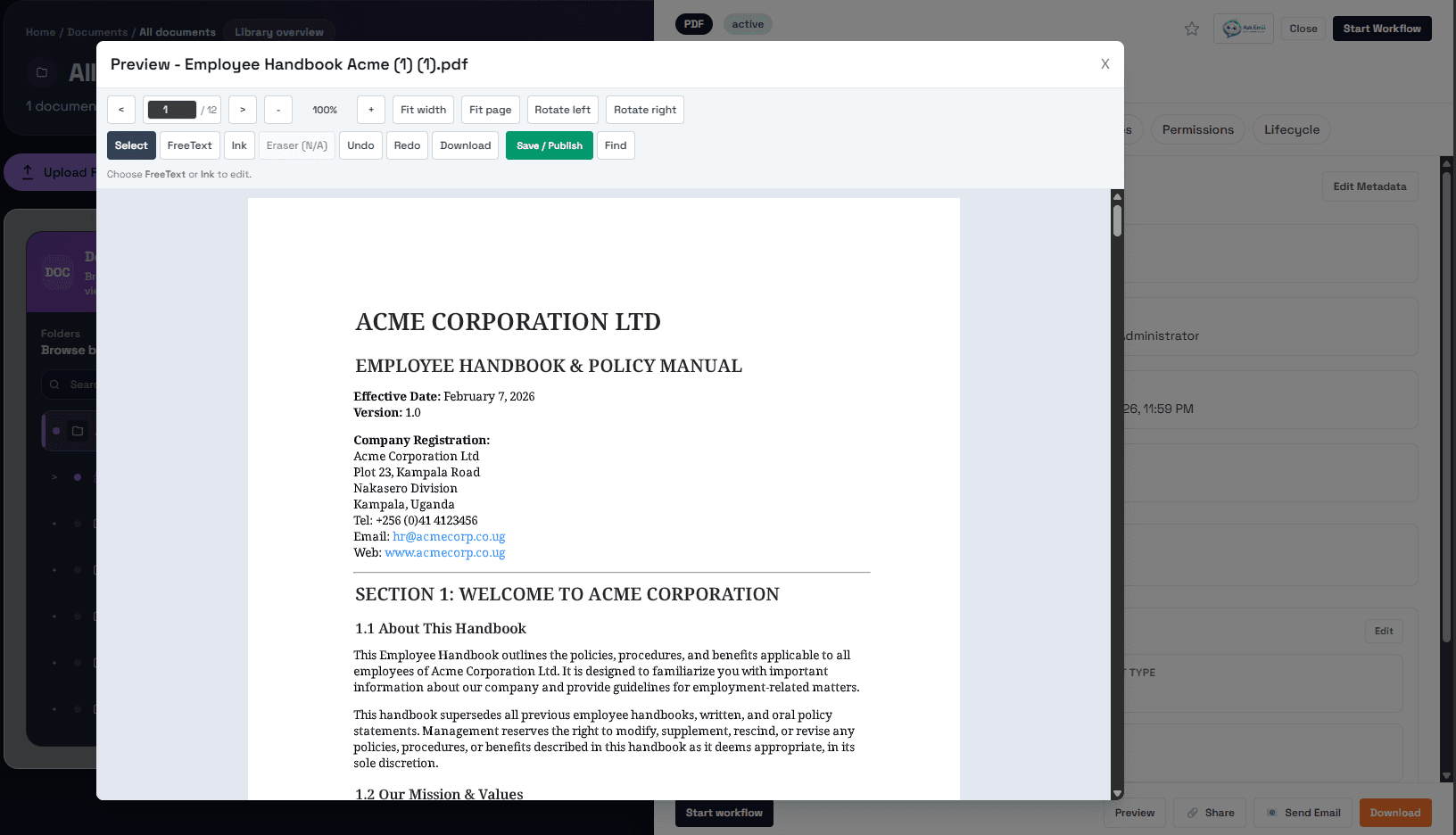
Open preview
Open the document row action menu and choose Preview, or open the Document Detail Drawer and click Preview in the footer. You need view permission for the document. Download permission is separate, so a user may be able to preview a document without being allowed to download the original file.
Supported preview behavior
PDF files open directly in the preview viewer. Office files and image files may be converted to a PDF preview depending on tenant configuration. The preview is a browser-friendly copy for review. Download retrieves the original file or the active document version when your permission allows it.
Missing PDF or failed preview
Missing PDF means DeskDox does not have a generated PDF preview available for that document/version. Check whether the original file exists, whether the file type is supported, whether the preview/converter worker is running, and whether preview generation has failed. If the preview keeps failing but the original downloads successfully, escalate to the administrator responsible for the converter or preview worker.