

How to Find a Document Using Search
Quick search
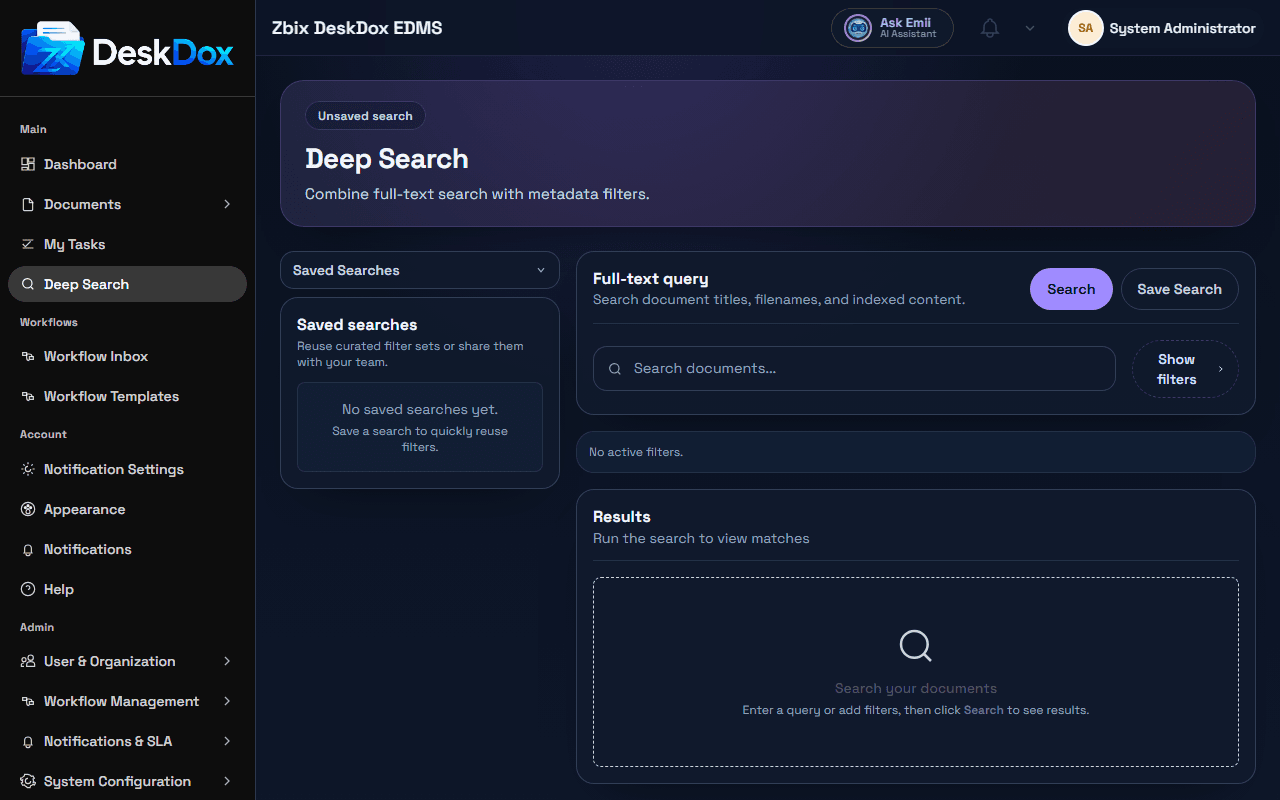
Open Deep Search, enter a keyword, and run the search. Keywords can include a document name, code, reference number, person, period, or a word from the document content when content indexing is available.
Metadata search
Use metadata fields when you know structured values such as category, department, reference number, date, status, owner, or other business fields. Metadata filters help narrow broad keyword searches to the exact document set you need.
Full-text and OCR search
DeskDox can search document content as well as metadata. Full-text and OCR-based word search can find words inside indexed files, including scanned content after OCR processing. Newly uploaded or scanned files may need indexing time before content words appear in results.
Filters and result refinement
Use status, category, metadata, and other visible filters to refine the result list. Start broad, then add filters one at a time so you can see which condition narrows the results.
Permission-aware results
Search results are filtered by your document, folder, role, and department permissions. If another user sees different results, confirm both users have the same access scope and that the same filters are selected.
If results are empty
- Check spelling and try fewer filters.
- Confirm document status (active vs expired/deleted context).
- Newly uploaded/scanned files may need indexing time.